
Local LLM
SPECLAN can use a local LLM running on your machine instead of a cloud provider like Claude, OpenAI, or Google. Your specification content never leaves your network, you pay zero API costs, and you can work offline.
This guide covers setup with three popular local LLM servers: Ollama, LM Studio, and vLLM.
From the SPECLAN Team — A Model That Works Beautifully
Looking for a proven starting point? The SPECLAN team has had excellent results using Qwen 3.6 35B A3B with a context length of 50,000 tokens. Running on a Mac M4 Max with 128 GB of memory, this model runs smoothly and produces wonderful, high-quality specifications. If you have similar hardware, this combination is a great place to start your local LLM journey with SPECLAN. For the full story behind that recommendation — what we tested, what failed, and why this one worked — read We Gave SPECLAN a Local Brain.
The Two Things That Actually Matter
Most local LLM setups fail for one of two reasons. Get these right and the rest is plumbing:
- Pick a capable model. SPECLAN's heavy features (Infer Specs, Clarification, CR Merge, HLRD Import) are agentic — they chain many tool calls and require strong instruction-following. Small or MoE models loop, hallucinate, or produce garbage. See Recommended Models below — in short: Qwen 3.6 (instruct) or dense Gemma 4 (27B) are your best starting points.
- Configure a 50k+ token context window. The default in most servers (especially LM Studio at 4096 tokens) is far too small. SPECLAN's system prompt, tool definitions, and multi-turn tool results easily exceed 4k. Aim for 50,000 tokens minimum; set it to the model's maximum if your RAM allows.
If you get nothing else right, get these right.
TL;DR — Fastest Path to Working
If you just want it running, pick Ollama. It has the least to configure: one install, one ollama pull <model>, no GUI, no context length to tune (Ollama picks a sensible value from the model's native capability). Everything past Step 1 takes about two minutes.
The setup in this guide is a one-time job. Once SPECLAN is pointed at your local server, every AI feature in the extension routes through it — no more touching the server unless you change models.
What You Need
- A machine with at least 8 GB RAM (16 GB+ recommended for larger models; for Qwen 3.6 35B A3B, plan on 64 GB+ unified memory)
- SPECLAN VS Code extension with Experimental features enabled
- One of: Ollama, LM Studio, or vLLM installed and running
How It Works
Local LLM servers expose an OpenAI-compatible API on your machine. SPECLAN connects to that API the same way it connects to OpenAI's cloud — but the traffic stays on localhost. The AI features (spec editing, artifact generation, clarification, CR merge) work the same way regardless of whether the model runs locally or in the cloud.
Quality depends on the model. Smaller models (1–8B parameters) are fast but may struggle with complex specification tasks. Larger models (20B+) produce better results but need more RAM and are slower.
Step 1: Install a Local LLM Server
Pick one. You only need one.
Option A: Ollama (recommended for first-time setup)
Ollama is the simplest option. One install, one command, models download automatically. Context length is handled for you — there are no sliders to tune.
- Install from ollama.com
- Pull a model:
ollama pull gemma4 - Ollama runs automatically after install. Default endpoint:
http://localhost:11434
Further reading: Ollama documentation · Model library · OpenAI-compatible API reference
Option B: LM Studio
LM Studio gives you a GUI for browsing, downloading, and configuring models.
- Download from lmstudio.ai
- Open LM Studio, search for a model (e.g., "qwen3.6" or "gemma-4"), and download it
- Go to the Developer tab (the
<->icon in the sidebar) and click Start Server - Default endpoint:
http://localhost:1234
Critical: Context Length (read this, don't skip it)
This is the single most common reason local LLM setups fail. LM Studio defaults to a 4096-token context window. SPECLAN's agentic workflows (Infer Specs, Clarification, CR Merge, HLRD Import) need at least 50,000 tokens — the system prompt, tool definitions, and intermediate tool results alone consume far more than 4k.
Without enough context, you will see errors like:
The number of tokens to keep from the initial prompt is greater than the context length
Or — worse — the model silently truncates its own reasoning and produces garbage output with no error at all.
How to fix it in LM Studio:
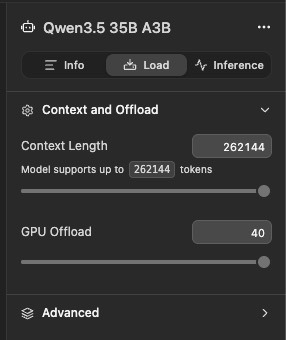
- In LM Studio, open the Load panel for your model (right sidebar)
- Under Context and Offload, drag the Context Length slider to 50,000+ tokens (we recommend using the model's full supported length if your RAM allows — Qwen 3.6 35B A3B, for example, supports 262,144 tokens)
- Set GPU Offload as high as your VRAM allows for acceptable speed
- Reload the model — context length changes only apply after reloading
Ollama handles context length automatically based on the model's native capability — another reason it's the easier starting point.
Further reading: LM Studio documentation · LM Studio OpenAI-compatible API · Configuring per-model context length
Option C: vLLM
vLLM is a high-performance inference server, best if you have a GPU.
- Install:
pip install vllm - Start with an explicit context length — vLLM's default is often the model's maximum, but set it explicitly so you know what you're getting:
vllm serve meta-llama/Llama-3.1-8B-Instruct --port 8000 --max-model-len 65536 - Default endpoint:
http://localhost:8000
Further reading: vLLM documentation · vLLM OpenAI-compatible server
Step 2: Enable Experimental Features
Local LLM support is an experimental feature. You need to enable it once.
- Open VS Code Settings (
Cmd+,on Mac,Ctrl+,on Windows/Linux) - Search for
speclan.experimental - Check the Enable experimental features checkbox
Step 3: Configure SPECLAN to Use Your Local Server
- Open the SPECLAN sidebar and click Settings (gear icon)
- Go to the LLM Configuration tab
- In the API Keys section, find the Local LLM (Experimental) card
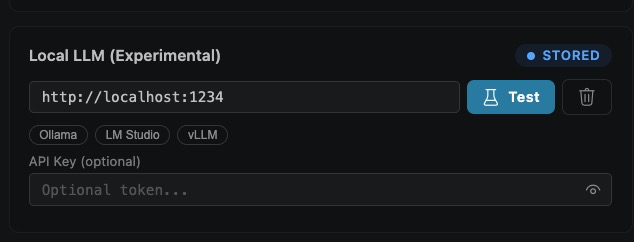
What each control does:
- Base URL field (
http://localhost:1234shown) — the endpoint SPECLAN calls. Must match the server you started in Step 1. - Quick-pick chips (
Ollama,LM Studio,vLLM) — click one to fill in its default URL (:11434,:1234,:8000). Faster than typing. - Test button (flask icon) — sends a probe request to
/v1/modelsand confirms the server is reachable. Do this before moving on. - Trash icon — clears the saved URL for this card.
- API Key field — optional. Most local servers ignore this. Fill it in only if you've put your server behind an auth proxy. Click the eye icon to reveal.
- STORED badge — appears in the top right once the URL is saved to your user settings. No badge means the URL is unsaved.
Enter your base URL (or click a quick-pick), then click Test. Wait for the success confirmation before continuing.
Step 4: Select a Model
In the LLM Model section, switch the provider to Local LLM (Experimental), pick a model, and apply it.
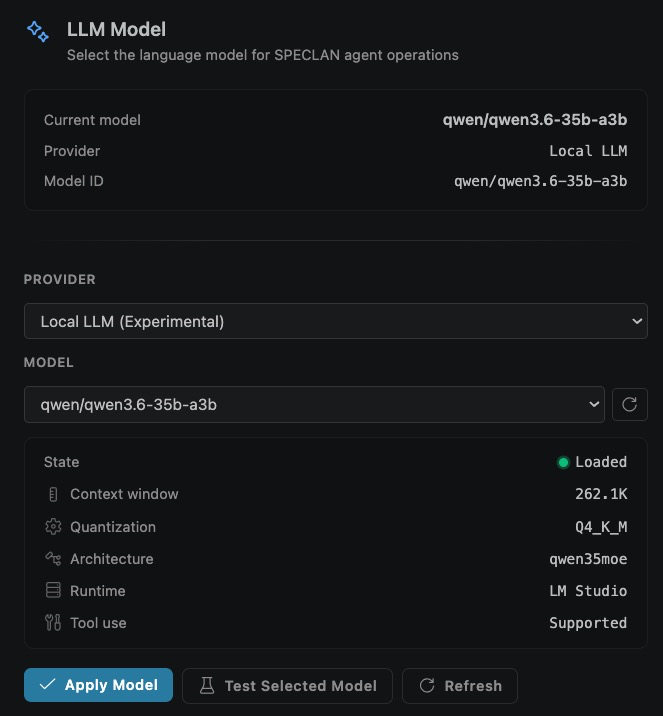
What each control does:
- Current model summary (top card) — read-only view of what SPECLAN is actually using right now: model name, provider, and full Model ID. This updates only after you click Apply Model.
- Provider dropdown — choose
Local LLM (Experimental). Cloud providers (Claude, OpenAI, Google) stay available in the same list — switching back later does not wipe your local config. - Model dropdown — populated from your server's
/v1/modelsendpoint. If it's empty, your server isn't reachable; see troubleshooting. - Refresh button (circular arrow, right of the Model dropdown) — re-fetches the model list. Use it after you load a new model in LM Studio or pull a new one with Ollama.
- State panel — diagnostic info about the selected model:
- State (e.g.,
Loaded, green dot) — whether the server has the model resident in memory and ready to answer. - Context window (e.g.,
262.1K) — the effective context length the server is serving this model with. If this shows4.0K, stop and go back to Step 1 Option B; your server will choke on SPECLAN's agentic workflows. - Quantization (e.g.,
Q4_K_M) — the weight-precision format. Q4 variants are the usual speed/quality sweet spot. - Architecture (e.g.,
qwen35moe) — the model family. Look formoein the name: mixture-of-experts variants are faster but weaker at sequential tool use (see Known Local Model Limitations). - Runtime (e.g.,
LM Studio) — which local server is hosting the model. Handy when you have both Ollama and LM Studio running. - Tool use (e.g.,
Supported) — whether the model advertises function-calling. If this saysNot supported, heavy workflows will fail — pick a different model.
- State (e.g.,
- Apply Model — commits the selection. Nothing is active until you click this.
- Test Selected Model — runs a short live round-trip through the model (a few tokens in, a few tokens out) so you can catch broken configurations before you hit a real workflow.
- Refresh (bottom, duplicate of the dropdown refresh) — same action, placed with the buttons for convenience.
Recommended order: pick a model → Test Selected Model → Apply Model.
If the model dropdown is empty, your server may not be running or the URL may be incorrect. Check the URL in the API Keys tab and click the refresh button next to the model dropdown.
Step 5: Use SPECLAN as Usual
All AI features now route through your local model. Open a spec, use the AI chat, generate artifacts, run clarification — it all works the same way.
Switching Back to a Cloud Provider
Select a different provider (Claude, OpenAI, or Google) from the LLM Model dropdown and click Apply Model. Your local server configuration is preserved — you can switch back anytime.
SPECLAN Feature Compatibility with Local LLMs
Not every SPECLAN feature works equally well on every local model. SPECLAN has two distinct categories of AI workloads, and your local model's capabilities determine which ones you can use reliably.
Light Workloads (work on most local models)
These features use a single AI call with a focused prompt. Most 8B+ local models handle them well:
- Spec editing with AI chat (in the spec editor)
- Slash commands (
/rewrite,/shorten,/expand) - Commit message generation (Git Sync panel)
- Frontmatter repair
- AI response to a single question
Heavy Workloads (require capable tool-calling models)
These features are agentic — the AI calls multiple MCP tools in sequence, reads intermediate results, and decides what to do next. They place heavy demands on the model's reasoning, instruction-following, and self-termination. Most small local models fail here.
- Infer Specifications from Codebase — the AI explores your code, creates features, creates requirements with acceptance criteria, and links to goals. Many sequential
speclan_create/speclan_updatecalls. - HLRD Import — turns a requirements document into structured specs via multi-phase analysis
- Clarification Workflow — the AI finds issues in your specs and proposes structured changes
- CR Merge — the AI merges a Change Request into its parent spec
- Artifact Generation with Clarification — multi-turn Q&A with the user
Known Local Model Limitations
When a local model isn't capable enough for a heavy workflow, you typically see one of these failure modes. All have been reproduced in our E2E test harness:
Note on tool names: SPECLAN's MCP server now exposes 13 consolidated
speclan_*tools (e.g.speclan_create,speclan_update). The tool names shown below and in the benchmark table are the current v2 names; the failure-mode observations and measurements themselves were gathered before the v2 tool consolidation, but the behaviors described are unchanged.
| Failure mode | What happens | Typical cause |
|---|---|---|
| Tool-call loop | Model calls the same MCP tool (e.g., speclan_update) with the same arguments 5–10+ times in a row until it hits the turn limit |
Model can't recognize "the tool already succeeded, I'm done." Common on Gemma MoE variants — Google's own docs note Gemma has no built-in loop termination |
| Tool hallucination | Model's final answer claims the spec was updated, but no MCP tool was actually called. The file on disk is unchanged | Model generated a "completion" narrative instead of executing tool calls. Seen on GPT-OSS 20B via LM Studio |
| Garbage frontmatter | YAML frontmatter is malformed — body content jammed into the title: field, markdown sections missing |
Model doesn't follow the exact argument schema of the MCP tool, confusing field names |
| Infinite retry on parse errors | Wizard shows "JSON parse failed, retrying..." over and over, then gives up after 3 attempts | Model ignores the response schema, returns freeform text or wrong-shape JSON |
These are limitations of the local model, not SPECLAN bugs. Cloud models (Claude, GPT-4/5, Gemini) are trained specifically for agentic tool use and rarely exhibit these issues.
E2E Benchmark Results
We test each local model with our live-LLM harness (apps/ai-agents-e2e). Results on a representative multi-step MCP workflow (reading and updating a requirement with full description + acceptance criteria):
| Server | Model | Tool-calling | Structured output | Verdict |
|---|---|---|---|---|
| Ollama | gemma4:latest (dense) |
PASS | PASS | Good for heavy workflows |
| Ollama | gemma4:31b (dense) |
PASS | PASS | Slower but clean |
| Ollama | gpt-oss:20b |
PASS | FAIL | OK for Infer Specs, not Clarification |
| LM Studio | qwen/qwen3.6-35b-a3b (MoE) |
PASS | PASS | Our current pick — with 50k+ context |
| LM Studio | google/gemma-4-26b-a4b (MoE) |
FAIL (loop) | PASS | Light workloads only |
| LM Studio | openai/gpt-oss-20b |
FAIL (hallucinates) | PASS | Light workloads only |
| LM Studio | openai/gpt-oss-120b |
FAIL (partial tool call) | PASS | Bigger is not always safer |
Three patterns stand out:
- MoE variants (A4B) are weaker at sequential tool use than their dense counterparts — with the notable exception of Qwen 3.6, whose training mix produces reliable agentic behavior despite MoE.
- Ollama's native tool-calling harness is more reliable than LM Studio's OpenAI-compatibility layer for the same base model family. If a model works in Ollama but fails in LM Studio, it's usually a chat-template translation issue, not a model-quality issue.
- Size does not rescue you. The 120B variant of
gpt-osson LM Studio failed in the same category as its 20B sibling. Picking the right 8B can beat picking the wrong 120B.
For the full narrative behind these results — including why we almost shipped without Qwen 3.6 and what changed when we tried it — see the companion blog post We Gave SPECLAN a Local Brain.
See What Each Model Actually Writes
Recommendations and benchmark tables only take you so far — at some point you have to read what a model produces. We ran the same brief (the excalidraw codebase) through Claude Opus 4.7, Sonnet 4.6, Haiku 4.5, GPT 5.4, and GPT 5.4 Mini and parked every resulting spec tree side-by-side at speclan.net/compare. Pick a feature, pick a requirement, read what each model authored. Useful for calibrating expectations against a real decomposition before you commit to a local setup.
Recommended Models
For light workloads (AI chat, slash commands, commit messages)
Any 8B+ instruction-tuned model works:
| Model | Parameters | RAM Needed | Notes |
|---|---|---|---|
| Llama 3.1 (8B) | 8B | 6 GB | Fast, good enough for quick edits |
| Gemma 4 (dense variant) | 27B | 14 GB | Best balance of quality and speed |
| GPT-OSS (20B) | 20B | 12 GB | Strong at instruction following |
For heavy workloads (Infer Specs, Clarification, CR Merge, HLRD)
You need a model that reliably handles sequential tool calls AND structured output. Our current recommendations, ordered by preference:
| Model | Parameters | RAM Needed | Notes |
|---|---|---|---|
| Qwen 3.6 35B A3B (LM Studio, 50k+ context) | 35B (3B active) | 64 GB+ | Team pick. Passes our full E2E benchmark. Best quality on capable hardware. |
Ollama gemma4:latest (dense) |
27B | 14 GB | Passes our full E2E benchmark. Best general-purpose choice on modest hardware. |
| Qwen 3.5 (instruct) | 4–30B | 4–16 GB | Top of 2026 tool-calling benchmarks. Run in Ollama for best results. |
| GLM-4.7 Flash | ~10B | 8 GB | High tool-calling accuracy per Hodges' 2026 eval. |
Models to avoid for heavy workloads (based on current testing)
google/gemma-4-26b-a4bin LM Studio — infinite tool-call loops on multi-step workflowsopenai/gpt-oss-20bin LM Studio — hallucinates tool calls, file never actually updated- Any model under 7B — not enough reasoning for multi-step agentic workflows
- Base models (non-instruct) — function calling requires instruction tuning
If a heavy workflow fails
- Check the SPECLAN Debug output channel — look for repeated identical tool calls (loop) or missing tool calls with a claim-of-completion final answer (hallucination)
- Try the same model in Ollama if you were using LM Studio (or vice versa) — the integration layer often matters more than the model
- Fall back to a cloud provider for the specific workflow. You can switch providers freely — your local configuration is preserved
- Try a smaller but more capable model — Qwen 3.5 4B often beats Gemma 26B on tool calling
Troubleshooting
"Model did not produce a final response!"
Your local server's context length is too small — by far the most common cause. See the LM Studio context length note in Step 1, Option B. Increase the Context Length slider to 50,000+ tokens (use the model's maximum if your RAM allows) and reload the model.
"Unknown provider: local"
Enable experimental features (Step 2). Local LLM only appears when speclan.experimental is checked.
Model dropdown is empty or disabled
- Check that your server is running (
curl http://localhost:11434/v1/models) - Verify the URL in the Local LLM API Keys card
- Click the refresh button next to the model dropdown
"ECONNREFUSED" or "Network error"
Your local server is not running or is on a different port. Start the server and check the URL.
Slow responses
Local inference speed depends on your hardware. Tips:
- Use a smaller model (8B instead of 70B)
- Close other memory-intensive applications
- If using LM Studio, enable GPU offloading in model settings
- If using Ollama on Apple Silicon, it uses Metal acceleration by default
Infer Specs or Clarification gets stuck in a loop
You see the same tool call (like speclan_update → R-0049) in the log repeated many times per second, and the workflow never completes.
Your model can't terminate its own agentic workflow — see the Tool-call loop failure mode above. Switch to a dense (non-MoE) model or use Ollama instead of LM Studio for the same model family. See the recommendations for heavy workloads.
Spec files look empty or have body content in title:
The frontmatter shows something like title: "Multi-line description got jammed in here..." and the actual body is the placeholder Feature description goes here.
Your model isn't following the MCP tool argument schema — it's putting body content into the wrong argument. Switch to a more capable model for heavy workloads.
"JSON parse failed, retrying..." repeats and gives up
Your model isn't following the expected response schema for the workflow. SPECLAN retries up to 3 times with a reformatting prompt, then aborts.
If this happens consistently on a specific workflow, try a different model. Qwen 3.6 and dense Gemma variants handle structured output more reliably than most other MoE variants.
Local LLM support shipped in SPECLAN v0.9.6. See the release notes for context on the other v0.9.6 LLM provider additions (ChatGPT OAuth, weaker-model adjustments).