
Artifacts
A specification is more than text. It comes with the wireframe that drove the decision, the API contract it has to honour, the regulatory PDF it answers to, the slide deck it was negotiated against. SPECLAN keeps that evidence in git, alongside the specs it backs, instead of leaving it scattered across Confluence, shared drives, or pasted-and-lost in chat.
This page covers what artifacts are, where they live, how you add and remove them, and the rules that govern artifact changes on locked specs.
Video Tutorial
The video below is a guided walkthrough of SPECLAN artifacts — attaching spec-level evidence, organising the project-wide reference shelf, and embedding inline images inside a spec body. Watch it first if you prefer a demo before reading the full reference.
Can't see the video? Watch on YouTube.
What Is an Artifact?
An artifact is a supporting file that belongs to a spec — anything externally maintained that helps explain or justify the specification:
- Mockups and wireframes
- OpenAPI / GraphQL / JSON schemas
- ER diagrams and data models
- Regulatory or compliance PDFs
- Stakeholder slide decks and approval scans
- Research transcripts, recordings, or session notes
- Brand guidelines and style guides
Artifacts are git-tracked. They version with your repository, travel with branches, and show up in code review the same way spec body changes do.
The Four Levels
Artifacts attach at four levels:
| Level | What it represents | Where it lives |
|---|---|---|
| Project | Reference material the whole project leans on | speclan/artifacts/ |
| Feature | Evidence pinned to one feature | <feature-dir>/artifacts/ |
| Requirement | Evidence pinned to one requirement | <requirement-dir>/artifacts/ |
| Change Request | Evidence introduced with a proposed change | <cr-dir>/artifacts/ |
Project-level artifacts are reference shelves — diagrams, brand guides, data dictionaries — that many specs may consult and no single spec owns. The other three levels (feature, requirement, change request) are spec-level: each artifact is pinned to exactly one spec entity and travels with it.
What SPECLAN Does (and Doesn't) Do With Artifact Content
This is the most important thing to understand before you start adding artifacts.
SPECLAN does not read, parse, summarise, or interpret the content of your artifacts. It stores them, references them from the spec, surfaces them in the UI, tracks their lifecycle through Change Requests, and keeps inline image embeds in sync on rename. That's it. None of SPECLAN's AI features (Clarification, Infer Specs, CR Merge, HLRD Import) consume artifact bytes.
What SPECLAN does is make sure the implementation agent — Claude Code, Codex, Cursor, or whatever assistant you're handing the spec to — can find the artifacts and decide for itself how to read them. The Quick Impl. prompt and the planfile-based implementation flows include the spec's relative path; from there the agent can walk the spec body's markdown links into the artifacts/ folder.
What the agent can read depends on the file format:
| Format | Implementation agent reads it? |
|---|---|
Markdown (.md), plain text (.txt) |
Natively — same as any source file |
| JSON, YAML, CSV, XML, source code | Natively — same as any source file |
| PNG, JPG, SVG, GIF | Most modern coding agents can read images directly |
| PDF, DOCX, PPTX, XLSX | Usually requires a skill, tool, or pre-extraction step |
Archives (.zip, .tar) |
Requires explicit extraction |
For binary office formats, the practical pattern is to either pre-extract the relevant content into a sibling Markdown artifact (requirements.docx → requirements.md) before the implementation hand-off, or to attach a skill/tool to the agent that handles the format. SPECLAN won't do this for you, and that's deliberate: it keeps SPECLAN provider-agnostic, avoids bundling PDF/DOCX parsers, and lets you control what evidence actually reaches the AI.
Think of artifacts as traceability and reference, not as input the AI has already consumed.
Spec-Level Artifacts
The spec-level Artifacts section appears at the bottom of every spec page in the WYSIWYG editor. Each attachment renders as a row showing the file-type icon, the file name, the type label, the human-readable size, and a row of action icons (open in a new tab, open in the default OS application, copy path, delete).
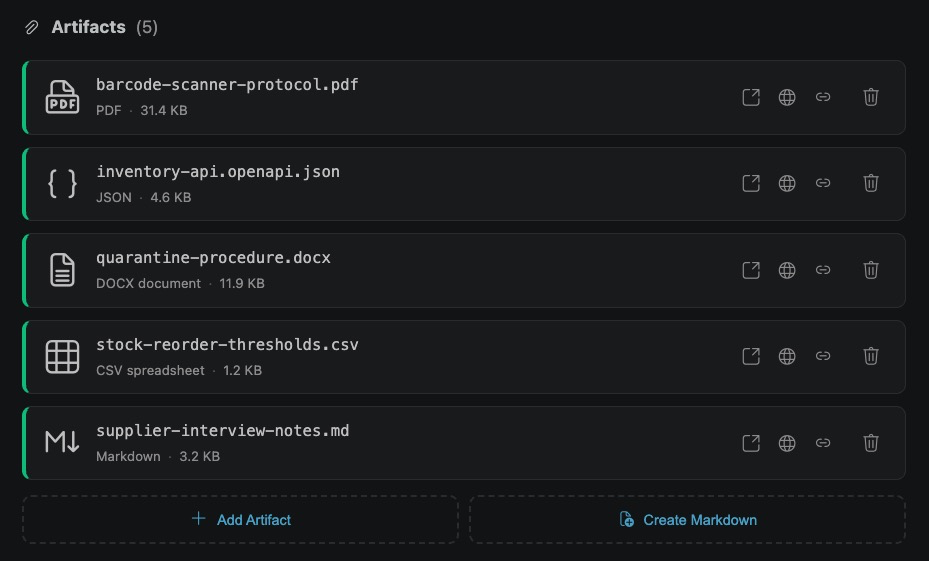
Where They Live
Every feature, requirement, or change request can have its own artifacts/ folder right next to its .md file:
speclan/features/F-2419-login-flow/
├── F-2419-login-flow.md
├── artifacts/
│   ├── login-mockup.png
│   ├── api-response-schema.json
│   └── stakeholder-approval.pdf
└── change-requests/
Adding Artifacts
Two ways, both available in the SPECLAN editor at the bottom of the spec page:
- Add Artifact button — opens a multi-file picker.
- Drag-and-drop — drop one or more files onto the Artifacts section from your OS file manager.
Each artifact appears as a compact box showing its file name, file-type icon, type label, and human-readable size. Click the box to open the artifact in a new VS Code tab using the registered default viewer (image viewer for PNG/SVG, PDF reader for PDFs, text editor for JSON, and so on).
Removing Artifacts
Click the trash icon on any artifact box. SPECLAN asks for confirmation before removing — because on a locked spec, removal triggers a Change Request rather than a direct delete (see below).
Images Are Special — Illustrations, Diagrams, and Pictures in the Spec
Image files (PNG, JPEG, GIF, WebP, SVG) are the one artifact class that can render inside the specification itself. The WYSIWYG editor displays them as part of the prose — illustrations next to a feature description, diagrams under an architecture section, screenshots illustrating a user flow, mockups beside the requirement that drove them — not as separate attachments the reader has to click through.
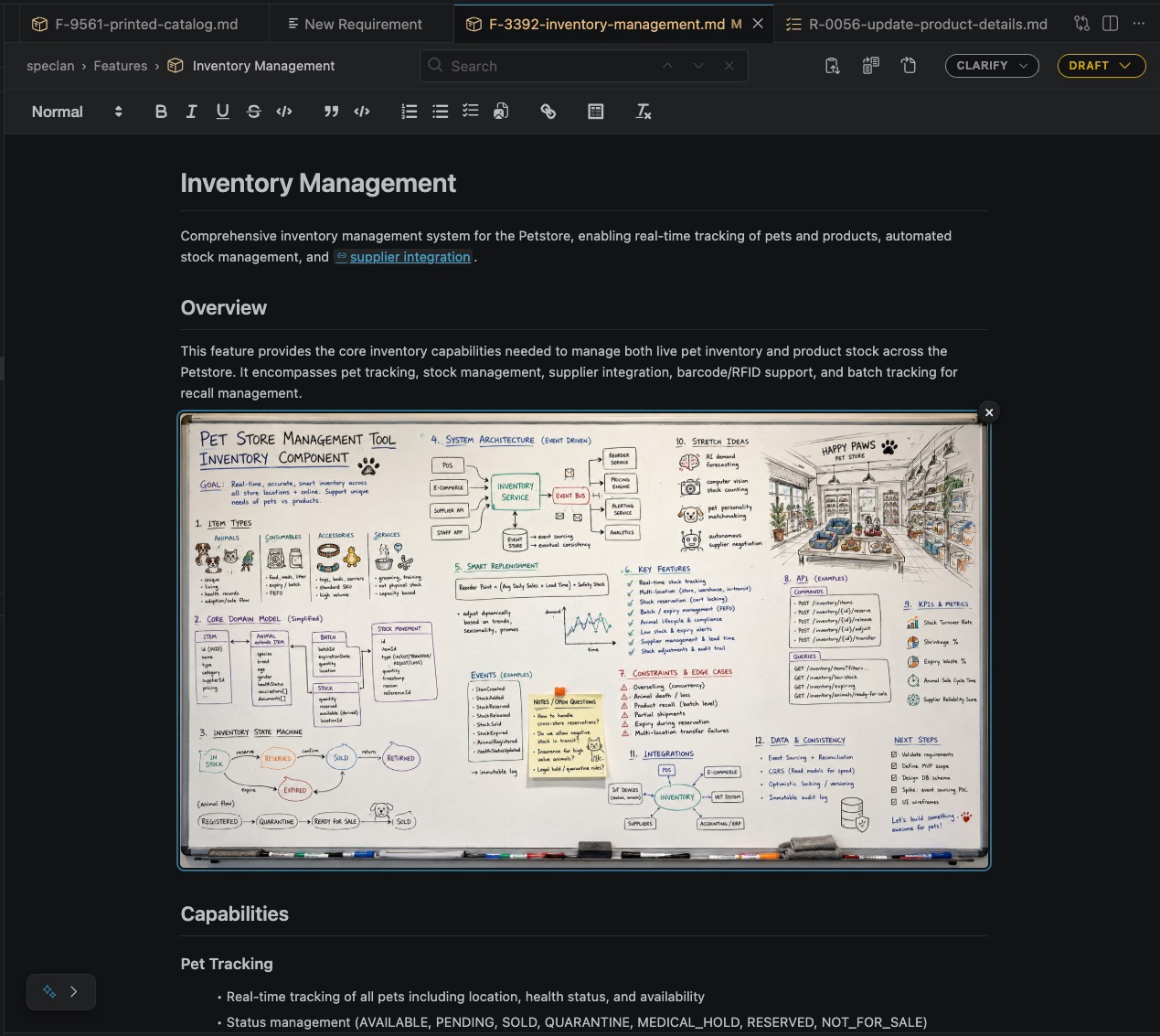
To insert one, use the image button in the editor toolbar. SPECLAN copies the file into the spec's artifacts/ folder and inserts a standard markdown image link pointing at it:

The link is plain markdown — it renders in any markdown viewer, in code review, on GitHub, in any tool that reads the file. The WYSIWYG view simply renders the image in place; switch to plain Markdown view and you see the link above with the same image rendered below it.
If you rename an image artifact later through the SPECLAN UI, SPECLAN cascades the rename through every inline link in the spec body so the embeds stay valid.
PDFs, spreadsheets, archives, and other non-image artifacts are referenced as plain markdown links — they don't render inline, but they're listed in the Artifacts section and one click opens them in the appropriate viewer.
Filename Sanitation
Filenames in artifacts/ need to stay portable across macOS, Windows, and Linux. SPECLAN sanitises every filename you add:
- Allowed characters: letters, digits, dot, dash, underscore (everything else becomes a dash).
- Base name capped at 120 characters.
- Windows-reserved names (
CON,PRN,AUX,NUL,COM1–COM9,LPT1–LPT9) rejected. - Case-only differences treated as collisions (
Foo.pngandfoo.pngare the same file).
Existing files that violate these rules are not auto-renamed — sanitation runs at every Add path, not on existing folders.
Change Request Governance — the Drift-Prevention Rule
SPECLAN's most important artifact rule: on a locked spec, you cannot silently change an artifact.
A spec is "locked" once it reaches in-development, under-test, or released. By that point, the implementation is being built, tested, or already shipped — and the artifacts attached to that spec are what the implementation is being verified against. If the API contract silently changes, the implementation no longer matches the evidence, and nobody knows.
To prevent this drift, SPECLAN dispatches artifact mutations on the parent spec's status:
| Spec status | Add or replace | Remove |
|---|---|---|
draft, review, approved |
Direct file copy | Direct delete |
in-development, under-test, released |
Auto-creates a Change Request that stages the file | Auto-creates a Change Request that proposes the deletion |
deprecated |
Disabled | Disabled (existing artifacts remain visible) |
How Staged Artifacts Work
When you add or replace an artifact on a locked spec, SPECLAN:
- Creates a Change Request in
draftstatus, titled either"New artifact <name> added"or"Replace artifact <name>". - Stages your file in the spec's
artifacts/folder under a CR-suffixed disk name:<base>.CR-####-<slug>.<ext>. Both the canonical file and the staged file coexist in the folder. - Shows the staged file in the Artifacts section with a "Pending CR-####" badge that displays the owning Change Request's lifecycle status. Click the badge to navigate to the CR.
You then advance the Change Request through SPECLAN's standard flow — draft → review → approved → in-development → under-test → released — and click the Merge button when it reaches released. On merge, the CR archives, the staged filename loses its CR suffix and becomes canonical, and the Artifacts section refreshes.
Removal Creates a Documented Decision
When you remove an artifact from a locked spec, the auto-created CR's body is pre-populated with:
<filename>was deleted — describe what implications this has on the specification.
You fill in those implications before advancing the CR to review. This turns "delete a wireframe" from a click into a documented decision — why is this evidence no longer relevant? what changed about the spec that makes the wireframe obsolete? — which is exactly the kind of trail an auditor or a future contributor will ask for.
Why This Matters: the Implementation Signal
The Change Request gate isn't just about review hygiene. An approved artifact-change CR is a signal into your implementation flow: the same trigger that releases a new mockup or a new contract also tells the implementation team that the build needs to update to match. Approve the CR, hand it to your implementation flow, and the implementation catches up to the evidence in the same lifecycle that surfaced the change.
Without the gate, a 4MB updated stakeholder-approval.pdf could overwrite the original on a released requirement and the implementation team would never see the diff. With the gate, every artifact edit is a tracked, mergeable, implementation-relevant event.
Multi-File Drops Stay One CR Each
Dropping three files onto a locked spec produces three separate Change Requests, not one batch CR. This preserves a strict one-add-one-CR symmetry: a reviewer looking at the Change Request list sees one CR per pending artifact change, not a "miscellaneous" CR carrying three unrelated mockups.
Project Artifacts — the Reference Shelf
The fourth artifact level — project-wide — works differently. Project Artifacts have no Change Request governance.
Where They Live
In a single directory at speclan/artifacts/, surfaced as the third top-level entry of the PROJECT view in the SPECLAN sidebar (alongside Vision and Mission):
PROJECT
├── 👁  Vision
├── 🚀 Mission
└── 📁 Artifacts
    ├── architecture/
    │   ├── system-overview.png
    │   └── deployment-diagram.svg
    ├── data-dictionary.xlsx
    ├── meeting-notes/
    │   ├── 2026-03-kickoff.md
    │   └── 2026-04-review.md
    └── brand-guidelines.pdf
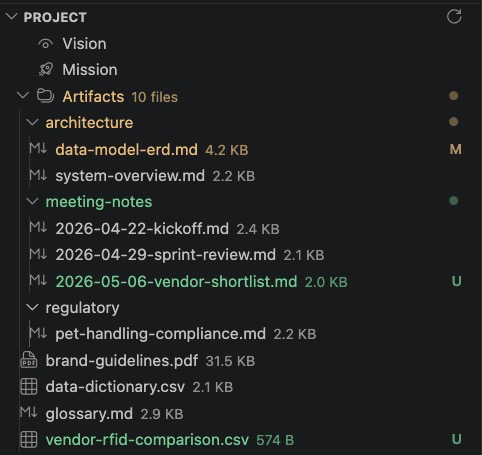
Project Artifacts can be organised hierarchically — folders nest to any depth. Click any file leaf to open it in VS Code's default viewer.
Adding Project Artifacts
Same two ways as Spec Artifacts: a multi-file picker (+ upload artifacts in the empty state) and native OS drag-and-drop on the Artifacts root entry. When a filename collides with an existing one, SPECLAN prompts per file: Overwrite / Keep both / Skip.
You can also organise subfolders directly in your OS file manager — the on-disk filetree under speclan/artifacts/ is the source of truth, and SPECLAN's filesystem watcher refreshes the tree automatically when you add, remove, or rename anything.
Folders dragged from the OS file manager are rejected at the SPECLAN drop target. Only files are accepted via SPECLAN; subfolder organisation goes through the OS file manager.
Why No Governance?
Locking applies to spec entities — they have a status, and that status declares whether the team has agreed on their content. Project folders don't have status. There's no "released project" to gate changes against. Project Artifacts are reference material that many specs may consult, that no single spec owns, and that don't fit any specification's lifecycle. Forcing them through a Change Request workflow would be ceremony without reason.
How Spec and Project Artifacts Compose
A spec body can link to a project artifact by relative path:
See the project [brand guidelines](../../../artifacts/brand-guidelines.pdf).
The link is plain markdown. SPECLAN doesn't track it as a referential relationship, doesn't auto-stage it under a CR, and doesn't validate that the path resolves. The two surfaces share one thing: a consistent icon vocabulary. A .pdf artifact gets the same icon in the spec's Artifacts section as it does in the PROJECT tree's Artifacts subtree, so you see a consistent visual language even though the governance is different.
Referencing Artifacts from the Spec Body
Once an artifact exists, you'll usually want to link to it from somewhere in the spec body — "see the contract here", "implements this mockup", "answers the regulation in this PDF." SPECLAN gives you two ergonomic ways to insert those links from inside the WYSIWYG editor, plus the manual fallback.
Spec Artifacts — the @ Command While Typing
While editing a spec body, type @ to open a contextual search popup. The popup mixes two kinds of result:
- Spec entities — Goals, Features, Requirements, Change Requests anywhere in the project, filtered by your query.
- The current spec's own artifacts — both canonical files and any CR-staged ones, filtered by case-insensitive substring on the filename.
Keep typing to narrow the list, then pick an artifact and SPECLAN inserts a correctly-relative markdown link at the cursor — no copy-paste, no path arithmetic, no broken links.
If you open the popup with no query yet (just @ on its own), the contextual mode shows the spec's artifacts alongside its ancestors, siblings, and children — useful when you're orienting around the current spec rather than searching.
Note: the @ popup only surfaces artifacts attached to the currently open spec. To reference an artifact attached to a different spec, navigate to that spec's link via @, then drag the file from there — or write the relative markdown link by hand (always works).
Project Artifacts — Drag from the PROJECT Tree
For project-wide artifacts living under speclan/artifacts/, the natural flow is drag-and-drop out of the PROJECT tree:
- Expand the PROJECT → Artifacts entry in the SPECLAN sidebar.
- Locate the file you want to reference (architecture diagram, brand guideline PDF, data dictionary…).
- Drag it onto the WYSIWYG editor at the position where the link should appear.
SPECLAN inserts a correctly-relative markdown link pointing from the open spec's location into speclan/artifacts/. The format depends on the file type:
- Image files (PNG, JPEG, GIF, WebP, SVG) drop in as inline
embeds — the image renders in place inside the WYSIWYG editor. - Other files drop in as styled, read-only link tiles — clickable, but visually distinguished from prose so reviewers see at a glance that something external is referenced.
The drop target is the editor body. Folder nodes and the Artifacts root entry are deliberately not draggable — only individual file leaves are. Single-file drag only; multi-selection exports just the first file leaf.
Manual Markdown Links Always Work
Both flows above just produce plain markdown links ([label](relative/path) or  for images). If you prefer to type the link by hand, that works exactly the same — the artifacts are visible to any markdown reader regardless of how the link got there.
Quick Reference
| What you want to do | Where to look |
|---|---|
| Attach a wireframe to a feature | Editor → Artifacts section → Add Artifact / drag-drop |
| Embed an image inline in a spec body | Editor toolbar (image artifact already added) → insert image |
Replace a contract on a released requirement |
Editor → Artifacts section → Add (auto-stages a CR) |
Delete a wireframe from a released feature |
Editor → Artifacts section → trash icon (auto-creates a removal CR) |
| Share an architecture diagram across the project | PROJECT view → Artifacts entry → drag-drop |
| Find an artifact you added | PROJECT view → Artifacts (project-wide) or the spec's editor (spec-level) |
Related
- Status Lifecycle — the lifecycle that gates direct vs CR-routed artifact changes.
- Getting Started — New Project and Existing Project — where artifacts fit into a project from day one.